Start
Using the dock
Select an element, edit CSS at rest or in a state, resize, reorder, hide, leave a note, and send the changes to your agent.
The dock is what primp adds to every page it serves. It stays out of the way until you open it: a round button in the bottom-right corner. Nothing in the dock is part of your page; primp's measurements and its layout-shift recorder leave it out.
Open and close#
Click the round button, or press ⌘ ⇧ E (Ctrl ⇧ E on Windows and Linux). The same shortcut closes it again, and so does Esc once no popover is open. Your changes stay recorded while it is closed; the round button shows how many are not sent yet.
The toolbar#
When the dock is open, a pill-shaped toolbar holds everything else. Every button has a tooltip; the letters are keyboard shortcuts while the dock is open.
| Button | Key | What it does |
|---|---|---|
| Changes | The changes recorded on this page, numbered like the pins, with their source position and what else moved | |
| Layout shifts | The layout shifts of this page load: culprit, cause and source line (Layout shifts) | |
| Verification | The results once your agent has edited the source (Verification statuses) | |
| Pause animations | P | Pauses the page's animations, so a moving element holds still while you select and edit it |
| Hide pins | H | Hides the numbered pins on the page |
| Copy prompt | C | Puts the prompt for your unsent changes on the clipboard, without sending them |
| Send | S | Queues the changes for your agent over MCP, and copies the same prompt |
| Settings | Theme, which corner the toolbar sits in, and the keyboard shortcuts | |
| Close | Esc | Closes the popover, then the dock |
Select an element#
While the dock is open, every click on the page selects the element under the pointer; there is no separate pick mode. Alt + click lets a click through to the page, to open a menu or follow a link. With an element selected, ↑ goes to its parent, ↓ to its first child, ← and → to its siblings.
The selected element is outlined, and the inspector opens in a popover next to it. It shows where the element comes from in your source, such as src/components/Hero.tsx:12, and how sure primp is: exact means that line holds the element's tag; file means the file is right and the line is a best guess; candidates means a ranked list of guesses. The agent is told the same.
Change styles#
The inspector lists the element's rules with their selector and stylesheet, and its computed values. Click a value to change it: Enter keeps it, Esc cancels, ↑ and ↓ step a number by 1 (with Shift, by 10). Any CSS property can be added, with completion. The page shows the change at once, as a preview; nothing is written anywhere.
- Media query. Make the change only under one of the page's media queries, for example the one for wide screens.
- Apply to. When the same component renders several elements like this one, choose between this element and all of them.
Hover, focus and active#
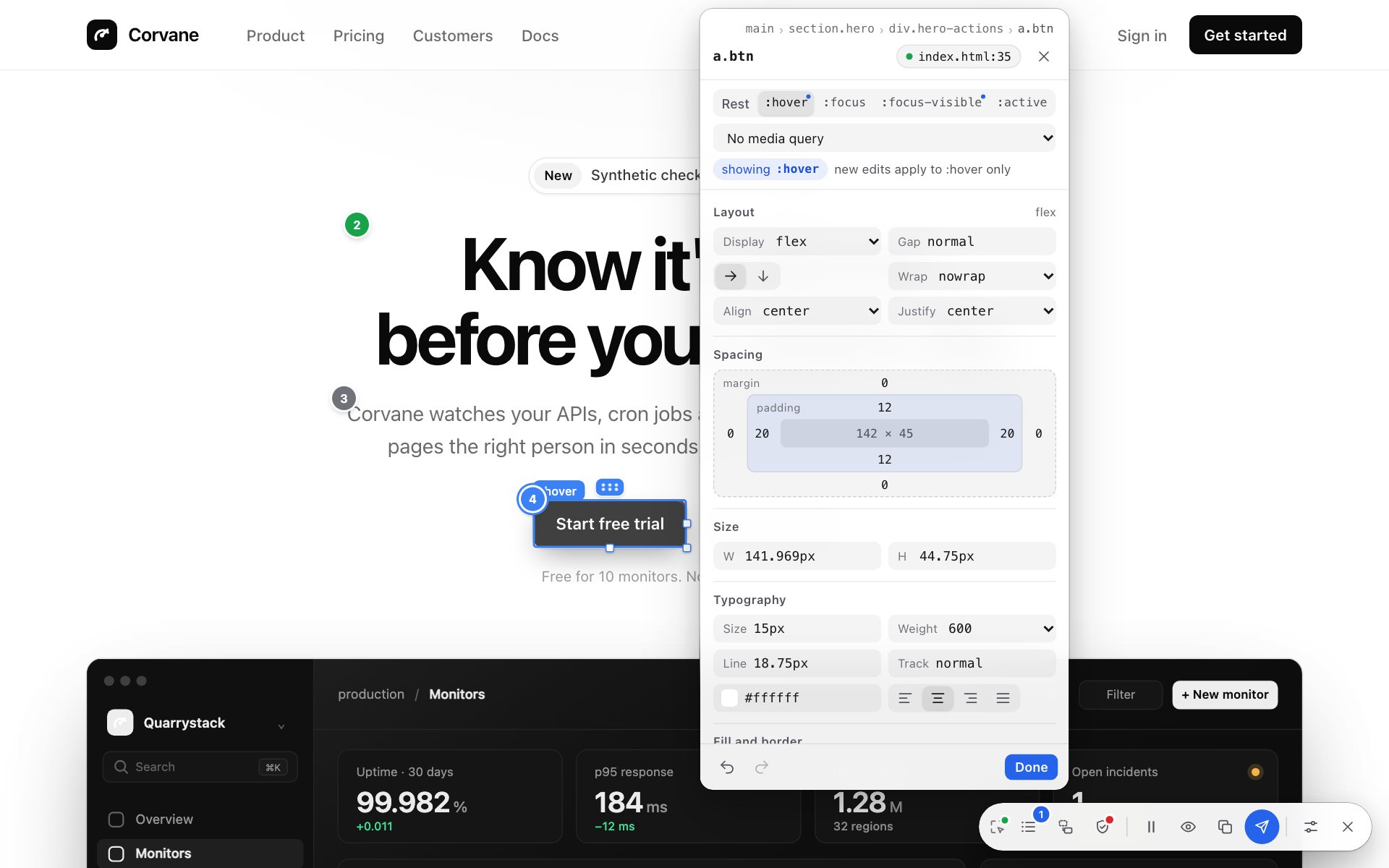
The State control shows the element as it looks in :hover, :focus, :focus-visible or :active, without you holding the mouse still or keeping the focus there. Edits made while a state is shown are recorded for that state only. Choose Rest to go back.
The state is emulated from the page's own stylesheets, and verification reads the value in that state, not at rest. A hover made by script, or a rule in a stylesheet from another origin, cannot be emulated; such a change is reported as fail or not measurable, never as a pass.
Resize#
A selected element has handles on its right edge, its bottom edge and the corner. Drag one; the size is shown as you go. Shift on the corner keeps the aspect ratio and Esc cancels the drag. A resize is recorded as an ordinary width and height change (one or both) and checked like any other. There are no handles on the left and top edges.
Reorder#
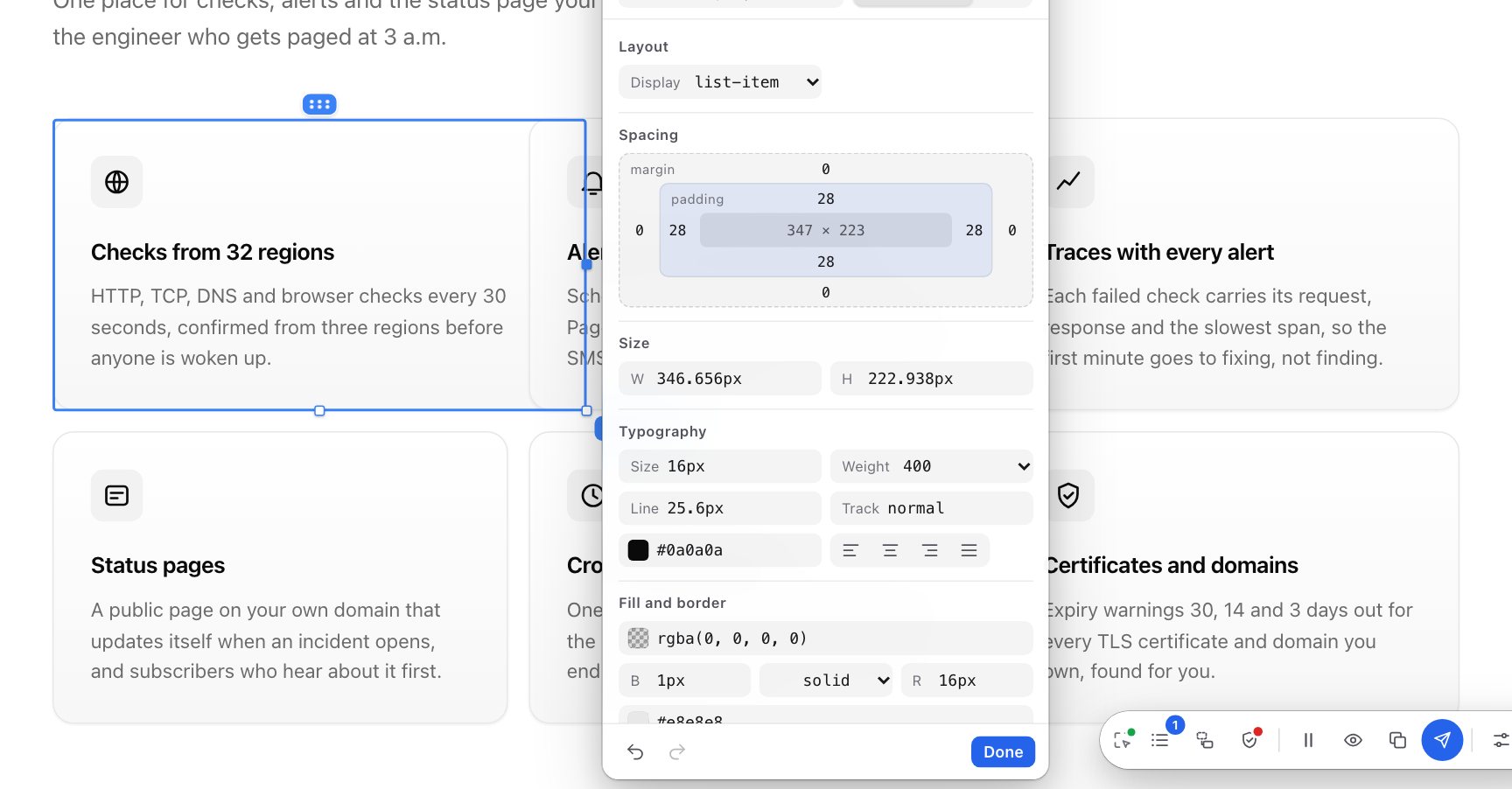
Drag the grip above a selected element to another place among its siblings, or use Move earlier and Move later. An element moves only among the children of its parent, never into another parent. The change is verified by the order of the elements in the page, and when the elements come from a list, the agent is told to reorder the data rather than the markup.
Hide and remove#
Hide and Remove record that the element should not be shown, or should not be there at all. The agent decides how in your code; primp checks that it is gone from view or from the page.
Notes#
Some changes are not CSS: new copy, "this should be a link", "use the brand blue here". Write them as a note, on the selected element or on the whole page. The agent gets your text word for word, with the element and its source position.
A note has nothing primp can measure, so its verification status is not_checkable: you check it by eye. It is never reported as a pass.
Pins#
Every changed element gets a numbered pin on the page, in the order you first changed it; the Changes and Verification panels use the same numbers. A pin is coloured by what is known about its changes: not sent yet, sent and waiting, or the result once verified (green for pass, amber for drift, red for fail). A result primp could not measure, such as a note's, stays the colour of "waiting": it is never shown as a pass. Hide pins hides them while you look at the page.
Side effects#
primp measures the page before and after every edit. Each recorded change carries a one-line summary of what else moved, for example “131 elements moved down 4px; .btn became 4px taller”. Open it to see the elements one by one.
Mark one as unwanted and it becomes a constraint: the agent is told that element must not move, and verification checks it.
Bystanders#
A change is often made through a CSS rule that other elements share. When the value you changed came from such a rule, the dock says so ("rule .btn also styles 1 other element"), and primp records up to three of those elements with their current values. The agent is told not to edit the rule in place, and verification fails the change if one of them changed:
a.btn "Read the docs"was not part of this change, but itspadding-bottomwent from12pxto14px.From a real run on the demo site.
State changes (:hover and the others) do not get this check.
Undo, Copy and Send#
⌘ Z (Ctrl Z) undoes, with Shift it redoes. Each change can be dropped on its own.
Send queues the changes for your agent: an agent connected over MCP picks them up with get_pending_changes. It also copies the prompt, to paste into any agent or chat; if the browser does not allow copying, the Changes panel shows the prompt for you to copy. Once sent, the previews leave the page, so your agent's edit lands on the page as your source makes it. Sent changes leave the undo history.
Copy prompt puts the same instructions on the clipboard without sending anything.
Verify#
Once your agent has edited the source, primp waits for the page to update, measures every change with its own previews switched off and shows the result per change: what was expected, what the page has, and why it failed. See Verification statuses.